Protect your system, boost performance, and prevent expensive repairs.
A 15-minute cleanup could save your computer from a $500 breakdown.
A clean, well-maintained computer runs faster, stays cooler, and lasts longer. This step-by-step guide shows you exactly how to clean your PC inside and out—without damaging components or missing key safety steps.
Step 1: Gather Your Tools and Stay Safe
What You’ll Need:
- Microfiber cloths (soft, lint-free)
- Compressed air (with straw attachment)
- Small soft brush
- Screwdrivers
- 90%+ isopropyl alcohol
- Thermal paste (for advanced cleaning)
- Anti-static wrist strap (or grounded metal object)
👉 Check out curated PC cleaning and protection tools
Safety First:
- Shut down your PC and unplug it from the wall.
- Press the power button once (while unplugged) to drain leftover power.
- Let everything cool completely before opening the case.
- Work on a hard, static-free surface.
- Clip on an anti-static strap—or touch a metal part of your case regularly to discharge static.
Step 2: Clean the Outside First
Case and Air Vents:
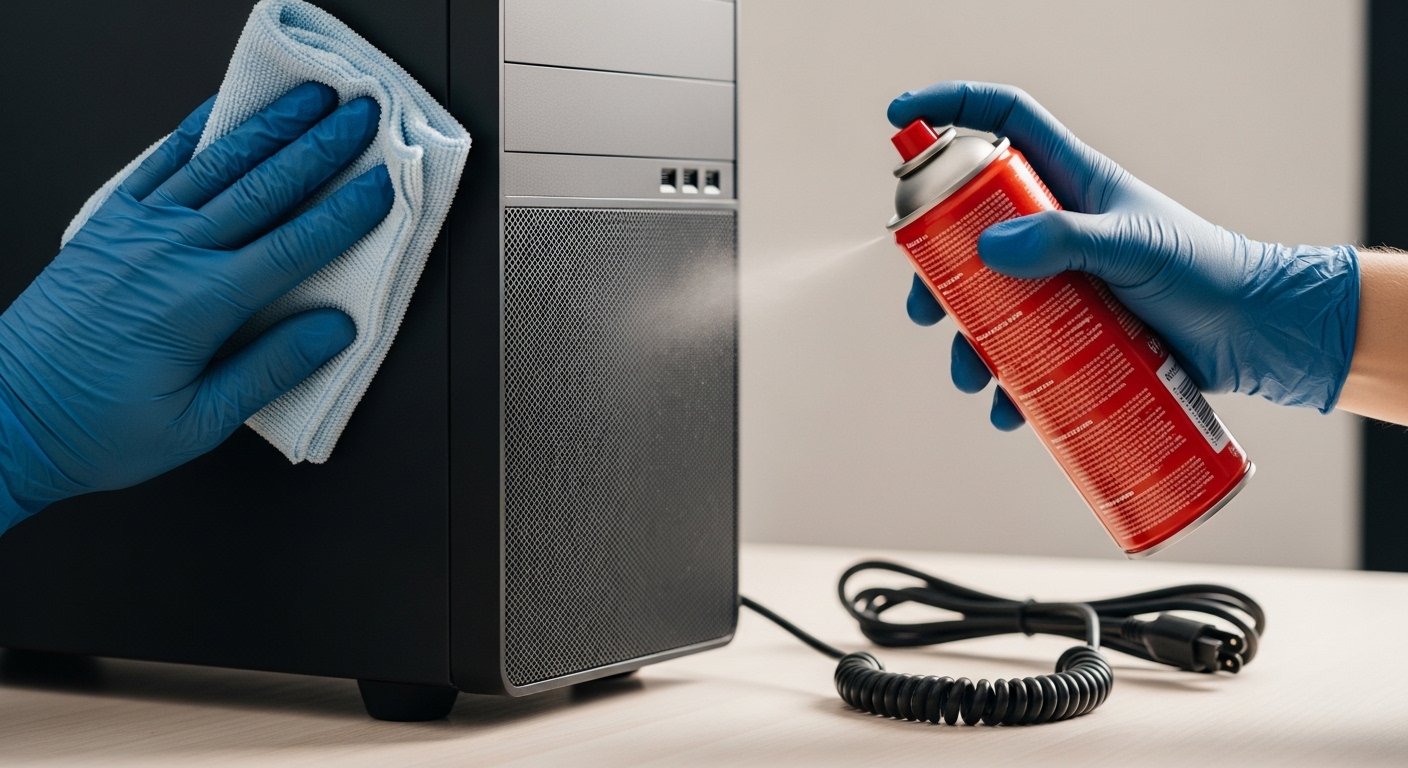
- Lightly wipe panels with a slightly damp microfiber cloth.
- Use short bursts of compressed air to blow dust out of vents.
- Keep the can upright to avoid liquid discharge.
Keyboard:
- Turn it upside down and gently tap to shake out crumbs.
- Blow air between keys to clear debris.
- For deeper cleaning, remove keycaps (if possible) and wash with mild soap.
- Wipe the surface and keycaps with alcohol on a cloth.
Mouse:
- Wipe the outside with a microfiber cloth.
- Use a cotton swab dipped in alcohol to clean the sensor area.
- Replace mouse feet if movement feels off or tracking skips.
Monitor and Cables:
- Turn off and unplug the monitor.
- Use a screen-safe cleaner or slightly damp microfiber cloth—no harsh chemicals.
- Inspect cables for damage; replace anything frayed.
- Reposition cables to prevent strain on ports.
Step 3: Carefully Clean the Inside
⚠️ Only proceed if you’re comfortable opening your PC. If not, stop here and consult a pro.
- Remove the side panel from your case.
- Take a photo of the cable setup before you touch anything.
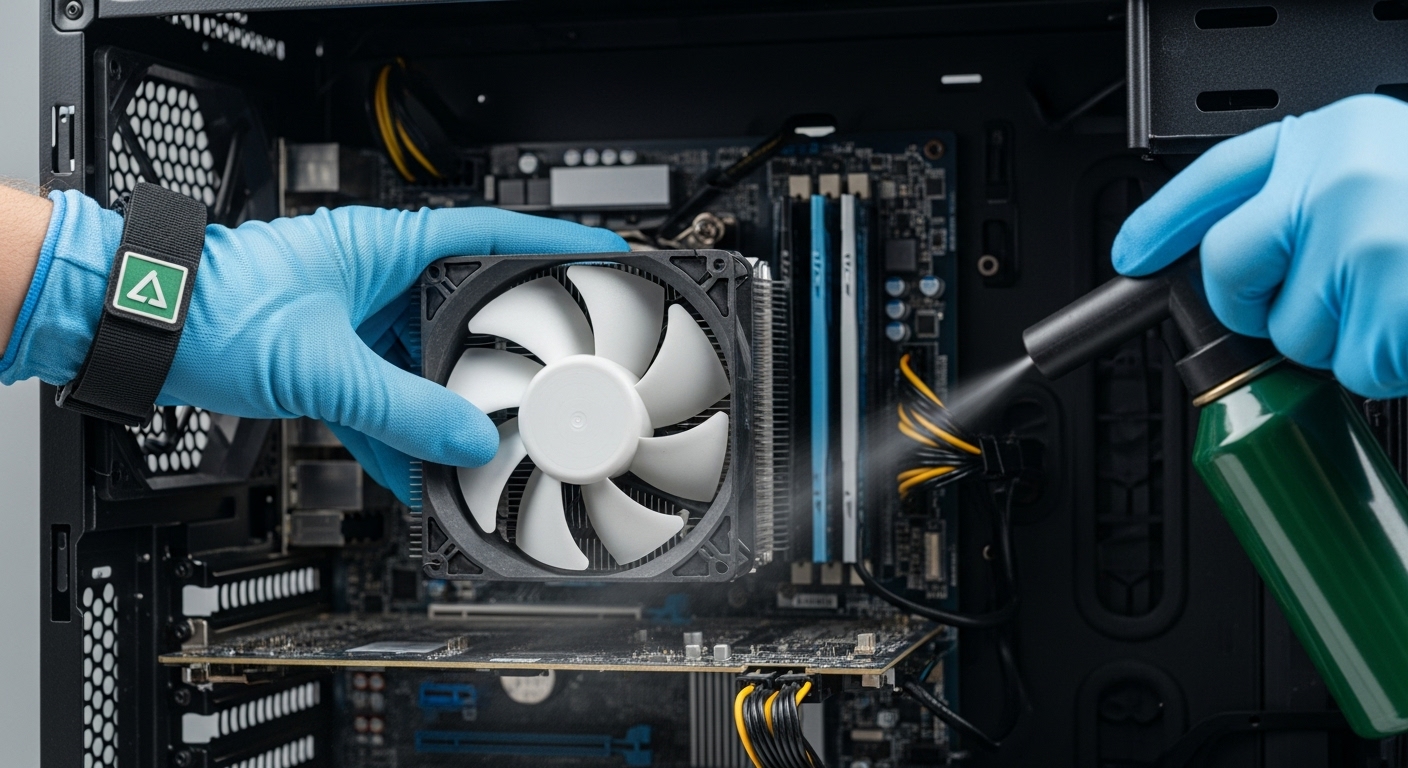
- Use compressed air to blow out dust—hold fans in place to prevent damage.
- Start from the top and work downward so dust falls out of the case.
Component Cleaning Tips:
- Use a soft brush to sweep dust off heatsinks, fan blades, and the motherboard.
- Don’t touch exposed pins or metal contacts.
- For the power supply, do not open it—blow air through the vents only.
👉 See some top picks internal PC cleaning tools here.
(Optional) Reapply Thermal Paste:
If your CPU still runs hot after cleaning:
- Gently remove the cooler.
- Wipe away old thermal paste using isopropyl alcohol and a lint-free cloth.
- Apply a pea-sized dot of new paste in the center of the CPU.
- Reinstall the cooler evenly—don’t overtighten.
Final Check:
- Reseat RAM, GPU, and power connectors by unplugging and firmly plugging them back in.
- Replace the case panel.
- Power on the system to confirm everything works before fully sealing it up.
Step 4: Tune Up Your Software
Get Updates and Run Security Checks:
- Install the latest updates for your OS and drivers.
- Run a full antivirus or anti-malware scan using trusted software.
- Uninstall apps you no longer use.
- Disable unneeded startup programs to speed up boot time.
Clean Up and Back Up:
- Use built-in tools to delete temporary files and browser caches.
- On HDDs: run disk defragmentation.
- On SSDs: ensure TRIM is enabled (skip defrag).
- Back up essential files to an external drive or a secure cloud service.
💾 Want to automate backups and keep your data safe?
👉 Explore trusted backup solutions and tools here.
Step 5: Set a Maintenance Schedule
Keep your system running smoothly with regular upkeep:
| Task | Frequency |
| Wipe down exterior | Monthly |
| Clean internal components | Every 3–6 months |
| Software tune-up | Monthly (minimum) |
| Back up files | Weekly or biweekly |
Set calendar reminders or use a checklist to stay consistent.
Troubleshooting & Extra Caution
- If your system doesn’t boot, check cables and re-seat all components.
- If it’s still overheating, confirm fans are spinning freely and securely.
- If you smell burning, hear buzzing, or suspect power supply issues—shut down immediately and seek help.
⚠️ Never open a power supply unit. High-voltage parts inside can be deadly. When in doubt, get professional service.
✅ Ready to Make Maintenance Easier?
If you found this guide helpful, the next step is simple:
Equip yourself with the right tools so every cleanup is faster, safer, and stress-free.
👉 See recommended PC cleaning and protection tools – that are reliable